 CricAura
Guides › Live streaming
How to live stream a cricket match on YouTube with a scoreboard
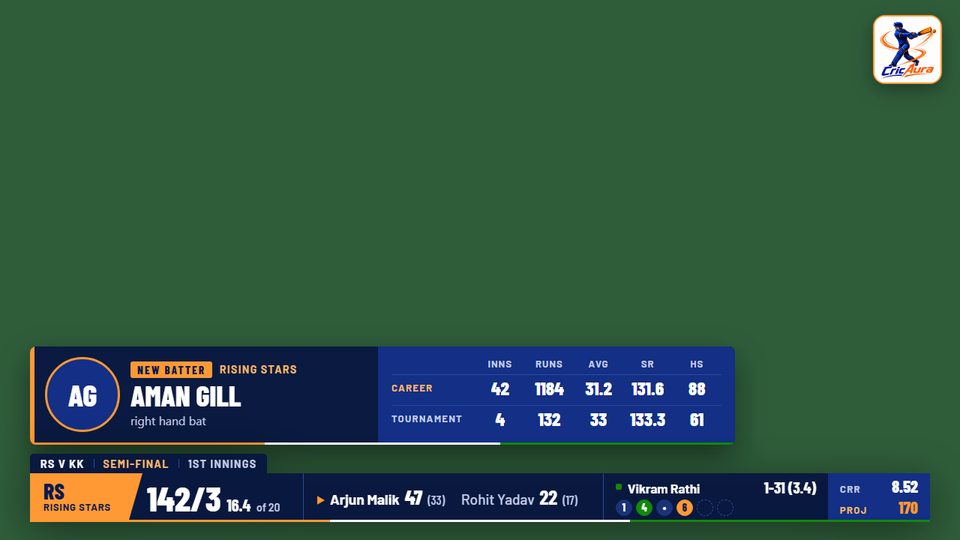
You don't need a camera crew or graphics software to stream a local match like it's on TV. With one phone on a tripod and CricAura scoring the game, the live score, batter and bowler cards, milestones and the final result are drawn over your video automatically.
What you need
- A phone for the camera, on a tripod or fixed to the boundary fence behind the bowler's arm.
- A steady mobile data or Wi-Fi connection at the ground (about 3–5 Mbps upload for 720p).
- A CricAura match set up with both teams. The scorer can use the same phone or a second one.
- Optionally, your own YouTube channel. You can also stream on CricAura's channel with nothing to set up.
Step by step
- Create the match in CricAura with both teams, the overs and your rules, and record the toss.
- Open the match and tap the Go live icon. It's available to the match host, admins and the scorer.
- Choose where to stream: "Live Stream on CricAura" uses CricAura's YouTube channel; "Live Stream on My YouTube" uses your own connected channel.
- Pick a scoreboard design. Tricolour is the default; Full preview shows the scorebar, player cards, milestones and result screen before you choose.
- Pick the streaming method. "Host Phone" sends video straight from your phone and suits most grounds. "Server" lets CricAura's server add the scoreboard, which helps if the phone struggles, but needs a stronger connection.
- Start streaming and allow camera and microphone access. Then score the match as normal; the overlay follows every ball by itself.
What viewers see
- A compact scorebar: score, overs, both batters, the bowler, this over's balls, run rate and the target in a chase.
- Cards above the scorebar when a new batter walks in, a new bowler comes on or a batter is out, with their career and tournament stats.
- Fours, sixes, wickets, fifties and hundreds celebrated in the centre of the screen.
- A match intro, toss result, innings break summary and final result with the player of the match.
- The match's live scorecard link in the YouTube description, so viewers can follow ball by ball.
Tips for a better stream
- Put the camera high and straight behind the bowler's arm so the batter, bowler and stumps are all in frame.
- Use landscape for a full-screen TV feel, or portrait if most viewers watch on phones.
- Plug the phone into a power bank; streaming for a full match uses a lot of battery.
- Test the connection at the ground before the toss. If video stutters, switch the streaming method.
- Share the YouTube link and the CricAura match link in your team WhatsApp group before the first ball.
Related: How to run a cricket tournament · Gully cricket rules